Member FAQ
Privacy Policy
Profile Management
Absolutely! Login to the website and select “My Account” from the top of the screen. You will see the option to “Edit Profile” at the top of the right side navigation menu. 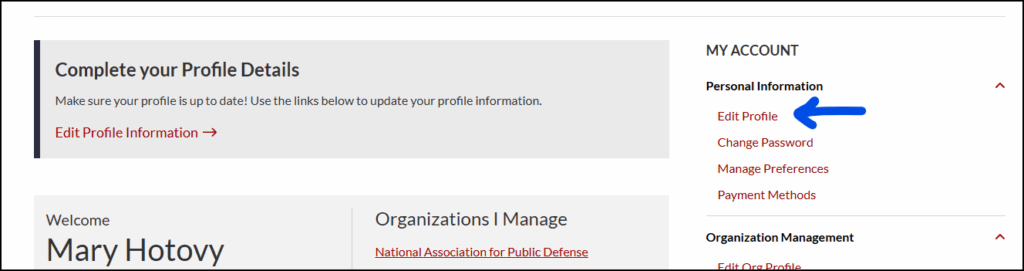
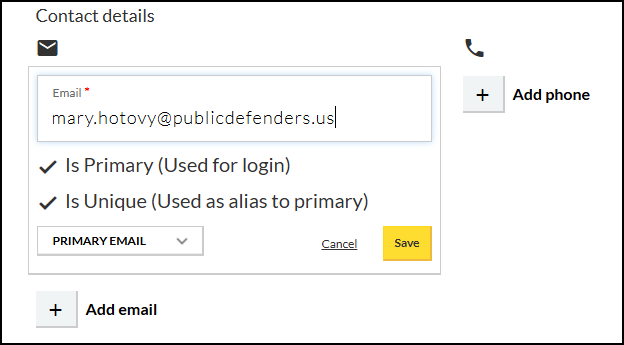
On the profile screen, scroll down to the “Contact details” section. You can click your current email address to open the field for editing or click the plus mark below your current email to add a second contact address to the account. The email address you mark as “PRIMARY” will be used for login. Be sure to click the yellow save button after making any changes.
Listservs & Groups
While a Groups.io account is not required to subscribe to any of our lists, having an account provides a great deal of control over your listserv experience. Users can log in to see old discussions, customize their email frequency (including daily digests), and “mute” a series of emails by subject line. Account holders can also forgo emails entirely, accessing and posting to listservs only by logging in to the Groups.io website. To take full advantage of these settings, create a free account by clicking here.
Messages can vary widely, as all members of the group are able to submit questions or information. Similarly, the frequency of messaging can vary widely by group. Some are very active while others are nearly dormant. The following Listservs are used to send notifications of upcoming virtual meet up events:
- Racial Justice
- Investigator
- Social Work
- Wellness
- Justice Impacted Professionals
- Core Staff
TIP FOR SUBSCRIBERS: Posting a question to one of our listservs seeking direct feedback? Use the hashtag #replytosender in your email’s subject line and all replies will be sent directly to you, rather than to the full list.
Check or events calendar or subscribe to our listservs! You can create an account and register yourself by clicking here or send an email request to engage@publicdefenders.us.
Managing Your Organizational Account
Organizational Membership Owners can assign one or more Roster Managers within the account. Roster Managers can access the current list of members and add or remove parties as needed. Below are the recommended steps for Roster Managers:
- Log into your account at https://publicdefenders.us/ then select “My Account” from the top of the screen.
- Select “Manage Member Assignment” from your account menu. You may see the option in the navigation tabs on the right side of the screen or within the gray Welcome box.
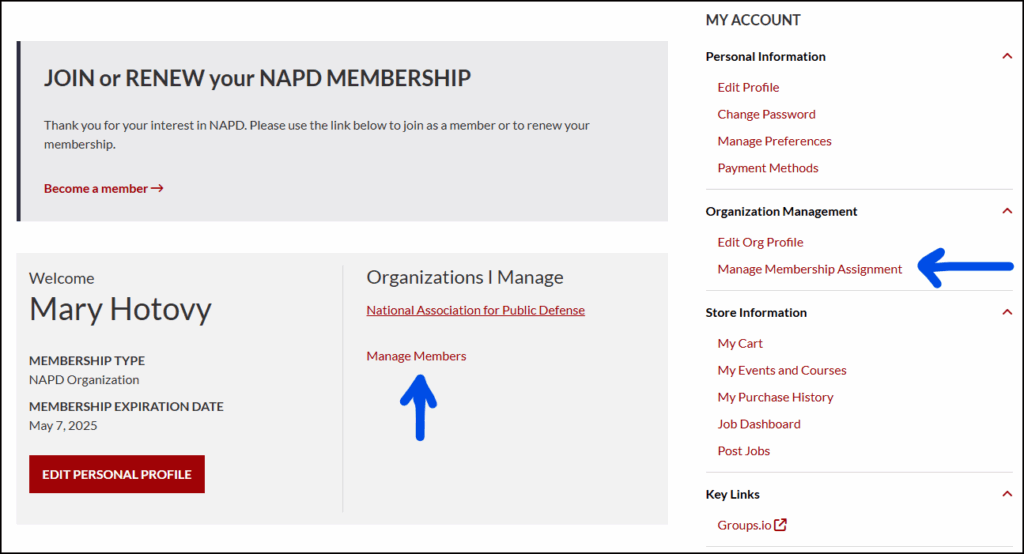
Follow the instructions above to access your roster. You have two methods available to add members:
1. Add an Individual
Individuals can be added using the form at the bottom of the roster page. We strongly encourage using the roster search to make sure they are not already listed within your agency before adding any additional parties. 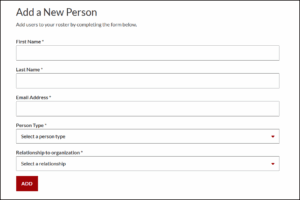
2. Bulk Upload
Bulk upload is recommended only when initiating the account or adding new hires. It is not recommended for a full roster update, as uploading profiles already associated with your organization that can cause duplications within the system.
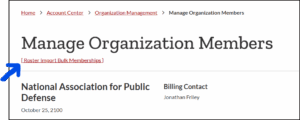
To access this option, click the hyperlink at the top of the screen to access bulk import instructions. You will need to download a template and follow the instructions for each field carefully. Roster managers can upload a maximum of 99 members at a time using this method. If your list is larger than 100 people, you can send your spreadsheet to membership@publicdefenders.us for assistance.
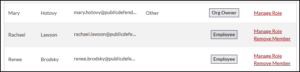
Roster managers are able to remove members from the organizational account on an individual basis. When viewing the roster, this option appears to the right of the person’s name and email address. The exception is the Organization Owner/Billing Contact. That person must be changed or removed by an NAPD administrator.
If there are many changes to be made, you can submit a spreadsheet to: membership@publicdefenders.us